

Step-by-Step Guide on How to Watch IPTV on VLC Player
Are you tired of complicated streaming setups? Looking for an easy way to watch your favorite IPTV channels? Can you really watch IPTV on VLC Player without technical hassles? Yes, you can, and this guide will show you how to seamlessly stream IPTV on VLC.
VLC Player is great for watching various formats, including IPTV. With the right setup, you’ll have a smooth viewing experience. This guide will help you set up IPTV on VLC, fix common problems, and make your viewing better.

Key Takeaways
- Learn how to configure VLC Player for IPTV streaming
- Understand the necessary steps for a seamless IPTV viewing experience
- Discover how to troubleshoot common IPTV issues on VLC
- Optimize your IPTV streaming on VLC for better performance
- Get started with IPTV on VLC without technical hassles
Understanding IPTV and VLC Player
It’s important to know the basics of IPTV and VLC Media Player for good IPTV streaming. Let’s first look at what IPTV is and how it works.
What is IPTV?
IPTV, or Internet Protocol Television, delivers TV shows over the internet. It’s different from old satellite or cable TV. IPTV uses your internet to stream shows to your device.
This lets you watch your favorite shows on many devices. You can use smart TVs, computers, or mobile devices.
The main benefits of IPTV are:
- Access to lots of channels and content
- Watching TV on many devices
- Watching shows when you want
Introduction to VLC Media Player
VLC Media Player is a free, open-source media player. It works with many audio and video formats. It’s made by the VideoLAN project and is very versatile.
VLC works on Windows, Mac, and Linux. This makes it a favorite among users.
VLC’s key features are:
- Supports many file formats
- Streams media over the internet
- Customizable interface and extensions
Why Use VLC for IPTV Streaming?
VLC Media Player is great for IPTV streaming. It’s easy to use and works well with IPTV streams. VLC can handle different stream formats and protocols.
Using VLC for IPTV has many benefits:
- Easy setup and configuration
- Supports many stream formats
- Free and open-source, always updated
Prerequisites for Watching IPTV on VLC
Before you start watching IPTV on VLC, make sure you have everything ready. You need the right hardware, a fast internet connection, VLC installed on your device, and an IPTV subscription.
Required Hardware and Internet Connection
You’ll need a device that can run VLC media player. This could be a computer, laptop, or other compatible devices. Also, a stable internet connection is key for smooth streaming. For HD content, a connection speed of at least 5 Mbps is recommended.
Hardware Requirements:
- A compatible device (computer, laptop, etc.)
- Sufficient RAM and processor speed
- A stable internet connection
Downloading and Installing VLC Player
VLC media player is free and supports many formats, including IPTV streams. To download VLC, go to the VideoLAN website and pick the right version for your device. Just follow the installation steps to set it up.
Make sure to download VLC from the official website to avoid malware.
Obtaining IPTV Subscription and Playlist
To watch IPTV content, you need to subscribe to an IPTV service provider. They will give you an M3U playlist or an Xtream Codes API link. This info is needed to set up IPTV on VLC.
| IPTV Component | Description |
| IPTV Subscription | Service providing access to IPTV content |
| M3U Playlist | File containing IPTV channel information |
| Xtream Codes API | Link to access IPTV content via API |
How to Watch IPTV on VLC
Watching IPTV on VLC is easy. Just load your IPTV playlist into VLC. It’s a favorite among users because VLC supports many IPTV formats.
Understanding Different IPTV Formats
IPTV comes in various formats, with M3U being the most common. Knowing these formats is key for a smooth viewing experience. M3U files list IPTV channels that VLC can play easily.
Other formats might need special settings or extra software. Learning about these formats helps you set up VLC without trouble.
Basic Method for Loading IPTV on VLC
Adding IPTV to VLC is simple. It’s just a few steps.
Step-by-Step Process
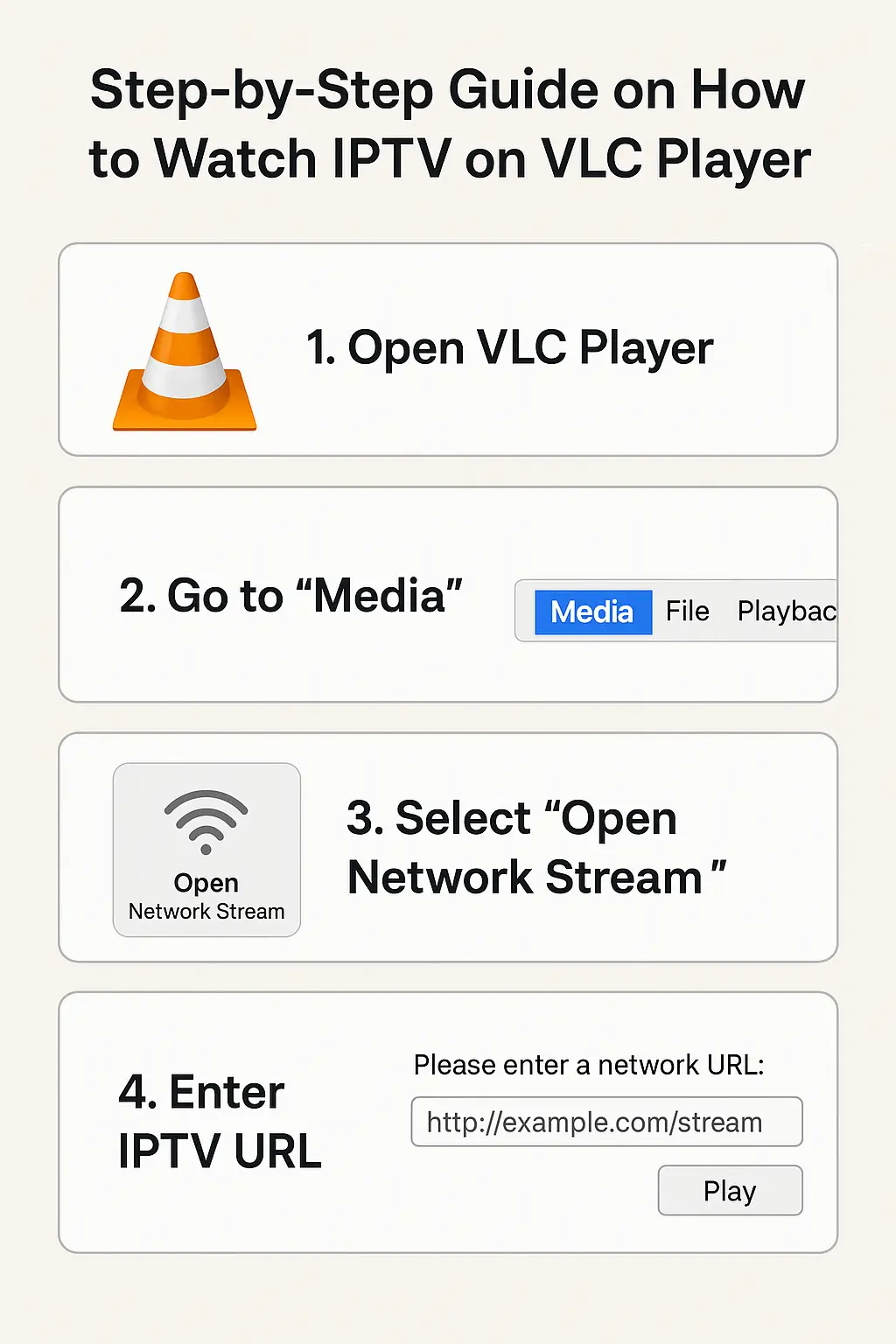
First, open VLC on your device. Go to “Media” and choose “Open Network Stream.” Then, enter your IPTV playlist or stream URL. Make sure the URL is right to avoid connection problems.
Click “Play” to start the stream. VLC will connect to the IPTV server and play the channels.
Verifying Successful Connection
Check if the IPTV channels play right after starting the stream. If not, check your internet and the IPTV URL for errors.
Setting Up IPTV on VLC Using M3U Playlists
Setting up IPTV on VLC with M3U playlists is easy and improves your streaming. VLC Media Player works well with M3U playlists, making it great for IPTV. Here, you’ll learn about M3U playlists and how to use them with VLC.
What is an M3U Playlist?
An M3U playlist is a file format for multimedia playlists. It’s supported by many media players, including VLC. An M3U file links to media streams or files, letting you access many channels or content from one file.
Opening M3U Files in VLC
Opening an M3U file in VLC is simple and can be done in two ways:
Using the Media Menu Method
To open an M3U file using the Media menu:
- Launch VLC Media Player on your device.
- Click on “Media” in the top menu bar.
- Select “Open File…” from the dropdown menu.
- Navigate to the location of your M3U file and select it.
- Click “Open” to load the playlist into VLC.
Drag and Drop Method
Alternatively, you can use the drag and drop method:
- Locate your M3U file in your file explorer.
- Drag the M3U file and drop it into the VLC window.
- VLC will automatically load the playlist.
Both methods make it easy to access your IPTV channels through the M3U playlist in VLC.

Adding IPTV to VLC via URL Stream
Adding IPTV to VLC via URL stream is easy and improves your streaming. This method lets you watch many IPTV channels right in VLC. It’s a great choice for users.
Finding Your IPTV Stream URL
To begin, get your IPTV stream URL from your provider. This URL is given when you sign up for IPTV. Make sure you have it before adding it to VLC.
Adding Network Stream to VLC
With your IPTV stream URL, open VLC and go to “Open Network Stream” under “Media.” Put the URL in the field and click “Play.” VLC will connect to the stream, letting you watch your channels.
Saving Stream for Future Access
To save the stream for later, add it to your playlist. Open the stream, then go to “Playlist” view. Right-click on the stream and choose “Save Playlist to File.” This makes it easy to watch your channels again in VLC.
By following these steps, you can easily add IPTV streaming to VLC. You’ll enjoy a wide variety of channels with just a few clicks.
Creating and Managing IPTV Playlists in VLC
VLC lets you make and tweak IPTV playlists. This makes it simple to get to your top channels. It’s great for sorting out lots of channels into a neat list.
Building Custom Playlists
To make a custom playlist, first collect your IPTV channel links. Open the “Media” menu, pick “Open Network Stream,” and put in the URL. After adding a channel, drag it to the playlist area to save it.

Organizing Channels by Category
Sorting your IPTV channels by type can make watching better. You can set up playlists for sports, movies, or news. This way, finding your favorite shows is a breeze.
Saving and Exporting Playlists
Once you’ve made your playlists, you can keep them for later. VLC lets you export playlists in many formats. This means they work with other players too. To save a playlist, go to the “Media Library” tab, right-click, and choose “Save Playlist.”
Advanced VLC Configuration for IPTV Streaming
To get the best out of IPTV on VLC, you need to tweak some settings. These tweaks can make your IPTV streams look and play better.
Optimizing Network Caching
Network caching is key for smooth IPTV streaming. It controls how VLC buffers your stream. To tweak it, open VLC’s settings, choose “All” settings, and go to “Input/Codecs.”
There, you can change the “Network Caching” value. A higher value can cut down on buffering but might slow things down. Try different values to find what works best for your internet.
Adjusting Video and Audio Settings
Changing VLC’s video and audio settings can also boost your IPTV experience. In the “Input/Codecs” section, you can turn on “Hardware-accated decoding.” This can speed things up by using your GPU for decoding.
Also, make sure your audio settings are right to avoid sync problems. Go to the “Audio” section in settings to tweak output and sync.
VLC experts say, “Setting up VLC right can really improve your IPTV streaming quality.”
“The key to a seamless IPTV experience lies in understanding and adjusting VLC’s advanced settings.”
Using Command Line Arguments for IPTV
For those who like to get hands-on, VLC lets you use command line arguments. This is great for automating IPTV or linking VLC with other apps. You can set things like network caching or stream URLs right when you start VLC.
With these advanced tweaks, you can make your IPTV streaming on VLC much better. Whether it’s tweaking network caching, adjusting video and audio, or using command line arguments, these changes can make your viewing smoother and more fun.
Using EPG (Electronic Program Guide) with VLC
To get the most out of your IPTV streaming on VLC, you need an Electronic Program Guide (EPG). The EPG feature shows you detailed info about current and upcoming programs. This makes it easier to find and enjoy your favorite shows.
Understanding EPG for IPTV
The Electronic Program Guide (EPG) is like a TV guide for IPTV channels. It lists programs, including titles, descriptions, and times. Using EPG with VLC makes your IPTV experience better by keeping you updated on what’s on and what’s coming.
Key benefits of EPG include:
- Easy navigation through IPTV channels
- Detailed program information
- Ability to plan your viewing schedule
Adding EPG to Your IPTV Setup
To add EPG to VLC, you need an EPG source. This can be an XMLTV file or a URL. After getting your EPG source, you can set up VLC to use it. Just go to VLC’s settings, find the EPG or XMLTV section, and enter the path to your EPG file or URL.
Steps to configure EPG in VLC:
- Obtain an EPG source (XMLTV file or URL)
- Open VLC and go to the settings or preferences section
- Locate the EPG or XMLTV settings
- Input the path to your EPG source
- Save your changes
Navigating Programs with EPG
With EPG set up in VLC, finding your favorite shows is easier. Just go to the EPG section in VLC to see a list of channels and their programs. This lets you quickly find and watch what you want.
Using EPG with VLC makes your IPTV streaming better and more fun. It helps you get the most out of your IPTV service on VLC.
Troubleshooting Common IPTV Issues in VLC
Streaming IPTV on VLC can sometimes cause problems. You might see buffering, playback issues, or errors with the stream connection. Knowing how to fix these can make your viewing experience better.
Buffering and Playback Problems
Buffering and playback issues are common. They often happen because of your internet or VLC settings. To fix buffering, try upping VLC’s cache size.
Go to Tools > Preferences > Input/Codecs. Then, change the Network Caching to a higher number. For example, try 1000ms or more, based on your internet speed.
Stream Connection Errors
Stream connection errors can pop up. They might be because of wrong stream URLs or server problems. Make sure your IPTV stream URL is right and works.
Try opening the URL in a web browser to test it. If it’s good, check your internet connection. Sometimes, switching to a different server can fix the issue.
Audio and Video Sync Issues
Audio and video sync problems can be annoying. To solve this, tweak VLC’s sync settings. Go to Tools > Track Synchronization.
Adjust the Audio delay or Video delay settings. A positive number delays the video, and a negative one delays the audio. Try different values until everything syncs up.
By following these steps, you can fix common IPTV problems on VLC. Regularly check your internet, VLC settings, and IPTV URLs. This can help avoid these issues before they start.
Watching IPTV on VLC Across Different Devices
IPTV on VLC works on many devices. This makes VLC IPTV player a top pick for users. You can watch IPTV on VLC on various devices for a smooth viewing experience.
VLC for Windows Setup
To watch IPTV on VLC for Windows, first download the latest VLC from VideoLAN’s website. After installing, open VLC and go to “Media” > “Open Network Stream” to add your IPTV stream URL. You can also use M3U playlists by opening them through the “Media” menu. Make sure your Windows firewall or antivirus doesn’t block VLC’s internet access.

VLC for Mac Setup
For Mac users, the steps are similar. Download and install VLC for Mac from the official website. After installation, launch VLC and go to “File” > “Open Network” to input your IPTV stream URL. You can also drag and drop your M3U playlist into VLC. Ensure your IPTV subscription details are correct and your internet connection is stable.
VLC for Linux Setup
On Linux, install VLC using your distribution’s package manager. Once installed, add IPTV streams by going to “Media” > “Open Network Stream” and entering your IPTV URL. Linux users can also use M3U files by opening them in VLC. Make sure VLC has the necessary permissions to access the network.
VLC for Android and iOS
VLC is also available on Android and iOS devices. Download the VLC app from the Google Play Store or Apple App Store. To watch IPTV, open the app, tap on “More” (three dots), and select “Open network stream” to enter your IPTV URL. You can also access M3U playlists through the app. VLC’s mobile version offers a convenient way to watch IPTV VLC on the go.
Enhancing Your IPTV Experience with VLC Extensions
VLC extensions can make your IPTV viewing better by adding new features and options for customization.
Essential VLC Extensions for IPTV
There are key VLC extensions for IPTV users. These include tools for managing playlists, accessing EPG, and improving stream quality. For example, the VLC IPTV Plugin makes managing IPTV streams easier.
- Playlist Manager: Makes organizing IPTV channels simple.
- EPG Guide: Offers program schedules for IPTV channels.
- Stream Quality Enhancer: Boosts stream quality for better viewing.
Installing and Managing Extensions
To add VLC extensions, download the files and add them to VLC via the Extensions menu. It’s easy to manage these extensions, with options to turn them on or off as needed.
- Download the extension you want from a trusted source.
- Open VLC and go to Extensions > Manage Extensions.
- Install the extension and restart VLC.
Creating Custom Commands
Advanced users can make custom commands with VLC’s Lua scripting. This lets you automate tasks and tailor your IPTV experience.
| Command | Description |
| lua command1 | Automates task1 for IPTV streams. |
| lua command2 | Improves stream quality. |
Security and Privacy Considerations for IPTV Streaming
When you stream IPTV on VLC, think about security and privacy. IPTV streaming can risk your device and personal data. To keep your viewing safe and private, follow a few steps.
Using VPN with VLC for IPTV
Using a Virtual Private Network (VPN) is a great way to protect your IPTV streaming on VLC. A VPN encrypts your internet, making it hard for others to see your data. Choose a VPN with strong encryption, lots of servers, and a no-logs policy. This keeps your data safe and lets you watch content from other places.

Legal Aspects of IPTV Streaming
It’s important to know the legal side of IPTV streaming. Not all IPTV services are legal, and using unauthorized streams can get you in trouble. Make sure you subscribe to legal IPTV services with the right to broadcast content. Always check the terms of service and follow local laws about IPTV streaming.
Protecting Your Network and Device
Keeping your network and device safe is key. Make sure your router has a strong password and consider a guest network for IPTV devices. Keep VLC and your device software updated for security patches. Also, use antivirus software to guard against malware in IPTV streams.
Recording IPTV Streams with VLC
Recording live IPTV streams is easy with VLC media player. Now, saving your favorite IPTV shows for later is simple. You can watch them whenever you want.
Setting Up Stream Recording
To record an IPTV stream, first open it in VLC. Then, start the recording process while it’s playing.
- Open VLC and play your IPTV stream.
- Go to “View” > “Advanced Controls” to display the recording button.
- Click the record button to start capturing the stream.
Recording your IPTV streams with VLC is straightforward. Your recorded files will be in the folder you set in VLC’s preferences.
Managing Recorded Content
Managing your recorded IPTV streams is important. VLC lets you choose where to save your recordings.
To check or change this setting:
- Go to “Tools” > “Preferences.”
- Under “Input/Codecs,” you’ll find the settings for recording path.
Organizing your recordings makes it easy to find and enjoy your IPTV content.
| Recording Feature | Description |
| Start Recording | Click the record button in the advanced controls |
| Stop Recording | Click the record button again |
| Recording Location | Set in VLC’s input/codec preferences |
Scheduling Recordings
VLC doesn’t have built-in scheduling for recordings. But, you can use your operating system’s task scheduler. This lets VLC start a stream at a specific time.
Windows users can use Task Scheduler. macOS users can use Automator or launchd for scheduling tasks.
Tips and Tricks for Optimal IPTV Viewing on VLC
Improve your IPTV viewing on VLC with our expert tips. To get the most out of your IPTV streaming, optimize your VLC player settings. Also, learn some handy shortcuts.
Keyboard Shortcuts for Efficient Navigation
VLC has many keyboard shortcuts to enhance your viewing. For example, press F to toggle fullscreen mode. Use spacebar to play or pause, and Ctrl + S to stop playback. Knowing these shortcuts makes IPTV viewing better and more fun.

Customizing VLC Interface for IPTV
Customizing VLC’s interface can also boost your IPTV experience. You can change the skin, add extensions, and adjust the layout. To change the skin, go to Tools > Preferences > Interface and pick your favorite.
You can also add extensions from the View > Add-ons menu. This improves VLC’s functionality.
Creating Channel Favorites
Creating a list of favorite channels saves time. To add a channel, right-click and choose Add to Favorites. Then, access your favorites quickly from the Favorites section.
By using these tips, you can make your IPTV viewing on VLC better. It becomes more enjoyable and easy to use.
Conclusion
You now know how to watch IPTV on VLC. This includes setting up your IPTV subscription and configuring VLC for the best streaming. By following this guide, you can enjoy a smooth IPTV experience with VLC.
To get the most out of VLC IPTV, optimize your network settings. Also, adjust video and audio configurations. Don’t forget to explore available extensions. Keeping VLC and your IPTV subscription up to date will give you access to the latest features and channels.
If you need more help, check out VLC media player documentation and IPTV community forums. With your new knowledge, you can easily watch your favorite TV channels and on-demand content.
Learning how to watch IPTV on VLC can improve your streaming experience. It helps you make the most of your IPTV subscription.
FAQ

What is IPTV and how does it work with VLC?
IPTV means Internet Protocol Television. It lets you watch TV shows online. VLC is a player that can stream IPTV channels. You just need to load the IPTV playlist or stream into VLC.
How do I set up IPTV on VLC?
First, download and install VLC. Then, get an IPTV subscription and playlist. Finally, load the playlist into VLC using the media menu or by dragging and dropping the file.
What is an M3U playlist and how do I use it with VLC?
An M3U playlist lists IPTV channels and their stream URLs. Open an M3U file in VLC by using the media menu or by dragging and dropping the file into VLC.
How do I add an IPTV stream URL to VLC?
Go to the “Media” menu, then select “Open Network Stream.” Enter the IPTV stream URL. You can save the stream for later use.
Can I record IPTV streams with VLC?
Yes, VLC lets you record IPTV streams. You can set up stream recording, manage recorded content, and schedule recordings.
How do I troubleshoot common IPTV issues in VLC?
To fix common IPTV issues in VLC, check for buffering and playback problems. Also, look for stream connection errors and audio and video sync issues. Adjust your settings as needed.
Is it legal to use IPTV streaming services?
IPTV streaming service legality depends on the provider and content. Always use a legitimate IPTV service with the right to broadcast content.
Can I use VLC to watch IPTV on different devices?
Yes, VLC works on many platforms. You can watch IPTV on Windows, Mac, Linux, Android, and iOS devices.
How can I enhance my IPTV experience with VLC?
To improve your IPTV experience with VLC, use essential extensions. Customize the VLC interface, create channel favorites, and optimize network caching.
What are some tips for optimal IPTV viewing on VLC?
For the best IPTV viewing on VLC, use keyboard shortcuts for easy navigation. Customize the VLC interface and create channel favorites for quick access.
How do I configure VLC for IPTV streaming?
To configure VLC for IPTV streaming, adjust network caching, video and audio settings. Use command line arguments to optimize your experience.
Can I use a VPN with VLC for IPTV streaming?
Yes, using a VPN with VLC can protect your privacy and security while streaming IPTV content.